Thumbnail Generation with Photoshop and JavaScript

A couple of weeks ago I wrote a post called Conditional Image Resizing with Photoshop and JavaScript that illustrated how to write a script to perform quick photo cleanup and resizing within a bounded area. Today I want to talk about a similar technique for generating thumbnail images. The fundamentals are the same, but the goal is slightly different.

Recently I did some redesign work for Stephen Zagorski Architects that also involved the addition of a lot of new project pages to the website. Each project page has an area for viewing images from the project, using thumbnails to navigate through the collection of images.
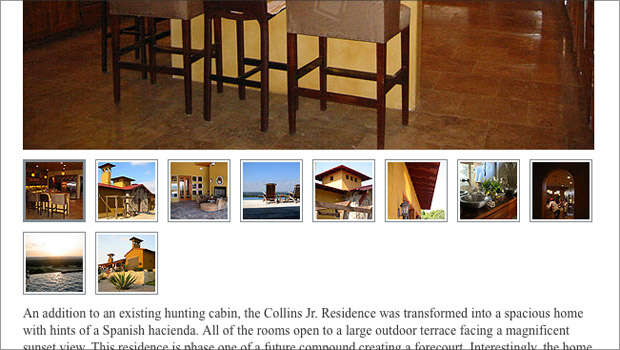
Project page

The full-size images have differing dimensions, but each of the thumbnails is 60 pixels square, which means each image is going to have to be cropped in some way. Due to the volume of thumbnails I needed to produce, this was not a process I wanted to do by hand. So, I set out to write a script that does the following:

  • If the image is taller than it is wide, crop it to a square by cropping off of the bottom of the image. Otherwise, crop it to a square by cropping off equal amounts from the sides.
  • After cropping, resize the image to 60 pixels square.
  • Apply auto-contrast, then sharpen.
  • Save it as a jpeg for the web.

The decision on "what to crop" from the image is based on the assumption that the most relevant parts of portraits are usually at the top, and for landscape, the relevant parts are in the middle. Of course this isn't always the case, but I find it gives good results most of the time.

The code for the script is below. If you need to know more about how to get this script running with Photoshop, you should refer to my previous post on the topic.

doc = app.activeDocument;
doc.changeMode(ChangeMode.RGB);

var thumbDim = 60; // the dimension of the square

// crop to a big square, conditionally, based on dimensions
if (doc.height > doc.width) {
    doc.resizeCanvas(doc.width,doc.width,AnchorPosition.TOPCENTER);
}
else {
    doc.resizeCanvas(doc.height,doc.height,AnchorPosition.MIDDLECENTER);
}

// resize, then auto-contrast and sharpen
// specify that our units are in pixels, via creation of a UnitValue object
doc.resizeImage(UnitValue(thumbDim,"px"),null,null,ResampleMethod.BICUBIC);
doc.activeLayer.autoContrast();
doc.activeLayer.applySharpen();

// our web export options
var options = new ExportOptionsSaveForWeb();
options.quality = 70;
options.format = SaveDocumentType.JPEG;
options.optimized = true;

var newName = 'thumb-'+doc.name+'.jpg';

doc.exportDocument(File(doc.path+'/'+newName),ExportType.SAVEFORWEB,options);

You should follow us on twitter here. Then, you should subscribe to our RSS feed here.

Comments

I just found this script and I like it. The only caveat is that the units are assumed to be in pixels. I have photoshop set up to be in inches, and this script made my thumbnail 60 inches X 60 inches and ate up all my free memory! I don't know the data model well enough to fix this in the script, so I just changed the preference in photoshop itself.

Hi David, thanks for catching that. I've actually run across that problem myself. The solution is to be more specific with the value that gets passed to the resizeImage() method. That method accepts a UnitValue object, which can be constructed to specify the units you want to use in your measurement. If just a number is passed, then the default unit used in your Preferences gets used, as you noted. I'll edit this post to take that into account. Thanks!

Nice site by the way.

Is there anyway to adjust the dimensions of the thumbnail to produce something other than a perfectly square thumb?

Also, is there a way to apply the script to all open documents? Not just the active doc?

Hi Marc,

You could modify this script to produce rectangular thumbs of any size and aspect ratio you'd like. For instance, if you wanted to just do a resize of all the images, but not crop to a square, you could take out the portion of the script that does the cropping, near the beginning.

As for applying the script to all open documents, you could do that with a slight modification and addition to the script. I just put up a post with the modified version. Usually what I do, instead of writing scripts to act on all open documents, is just assign my active-document-only script to a shortcut key, so I can quickly apply it to documents that way. But if you had a large number of documents to go through, then this kind of modification would come in handy.

Hey thanks for the quick response! For some reason I'm getting an error with that modification.

Error 25: Expected;
Line 4 -> for (i=0; i < docs.length, i++) {

Another puzzle I'm trying to solve is why, after using the script, all the images have double file extensions (eg: .jpg.jpg). I can't seem to touch anything in this script without causing an error.

My mistake. That comma after "length" should be a semi-colon. So that line should be:

for (i=0; i < docs.length; i++) {

The script appends ".jpg" to the filename of the original file, so that's why you're seeing the double extension. That was a quick and dirty way for me to make the script work even if the input is a .tif, or .gif, etc. It ensures that the output filename always has the .jpg extension. The file naming portion of the script could be more elegant, certainly.

Post new comment

The content of this field is kept private and will not be shown publicly.

More information about formatting options