 Coffeeshopped
Overview
Welcome to Patch Base 4! Here, I'll give an overview of installing the app, adding your first editor, and getting it set up.
Install the App
Once you've downloaded Patch Base from the website, you just need to unzip the .zip file, then drag the app into your Applications folder on your Mac. This step is important; running the app from a different folder will cause problems when trying to save any files, and generally will make the app not work.
Add Your First Editor
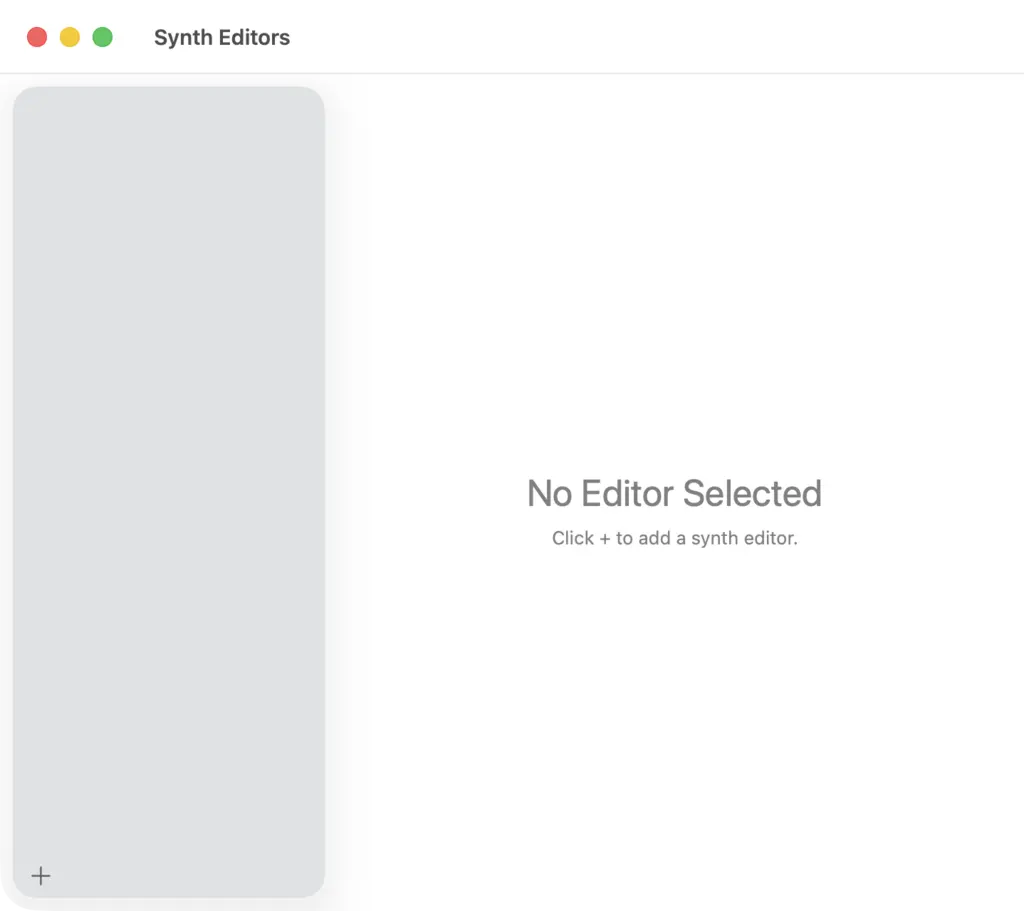
When you open Patch Base for the first time, you'll see an empty “Synth Editors” window. To add an editor, click the “+” button in the bottom-left of the window.
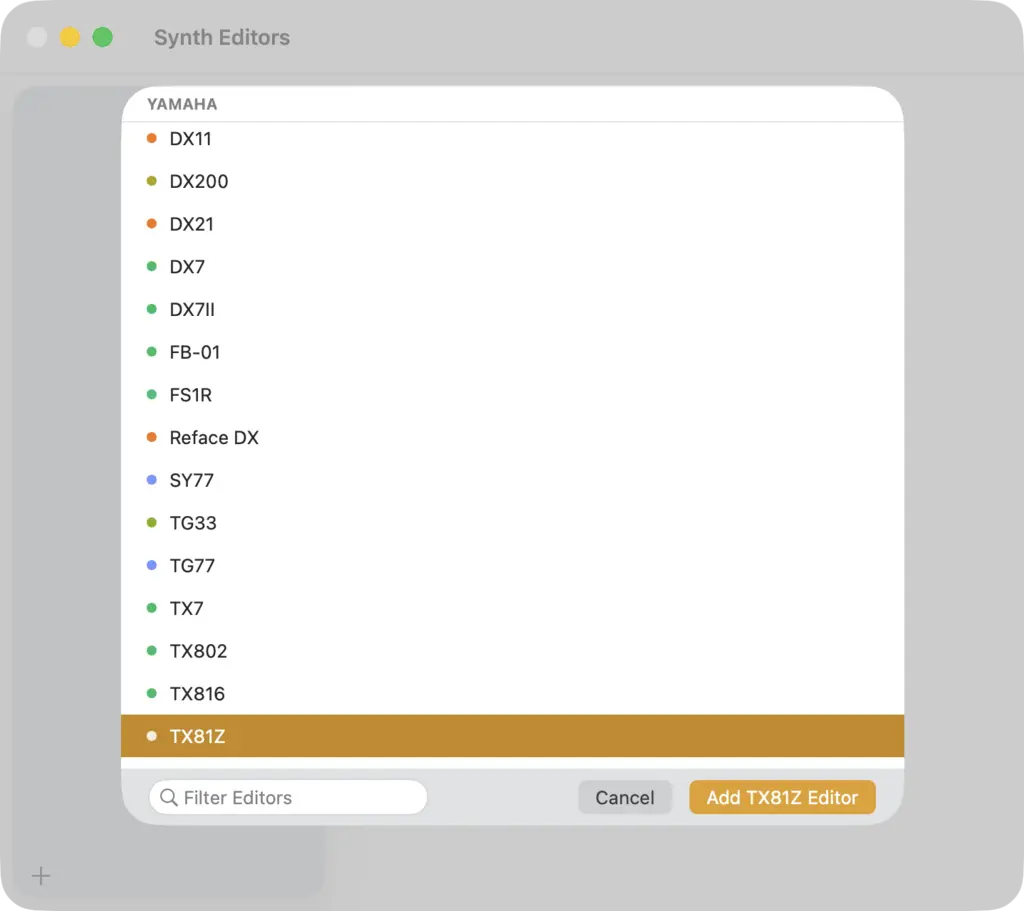
You'll be shown a list of all the synths that Patch Base supports. Select the editor you want to add.
Now it will be shown in the left-hand column of the Synth Editors window. Click on it, and you'll see an overview of the sections of the editor you added. Above the overview, you will be shown a panel that lets you start a Free Trial if you'd like (instant, no payment info required), as well as buttons to buy the app.
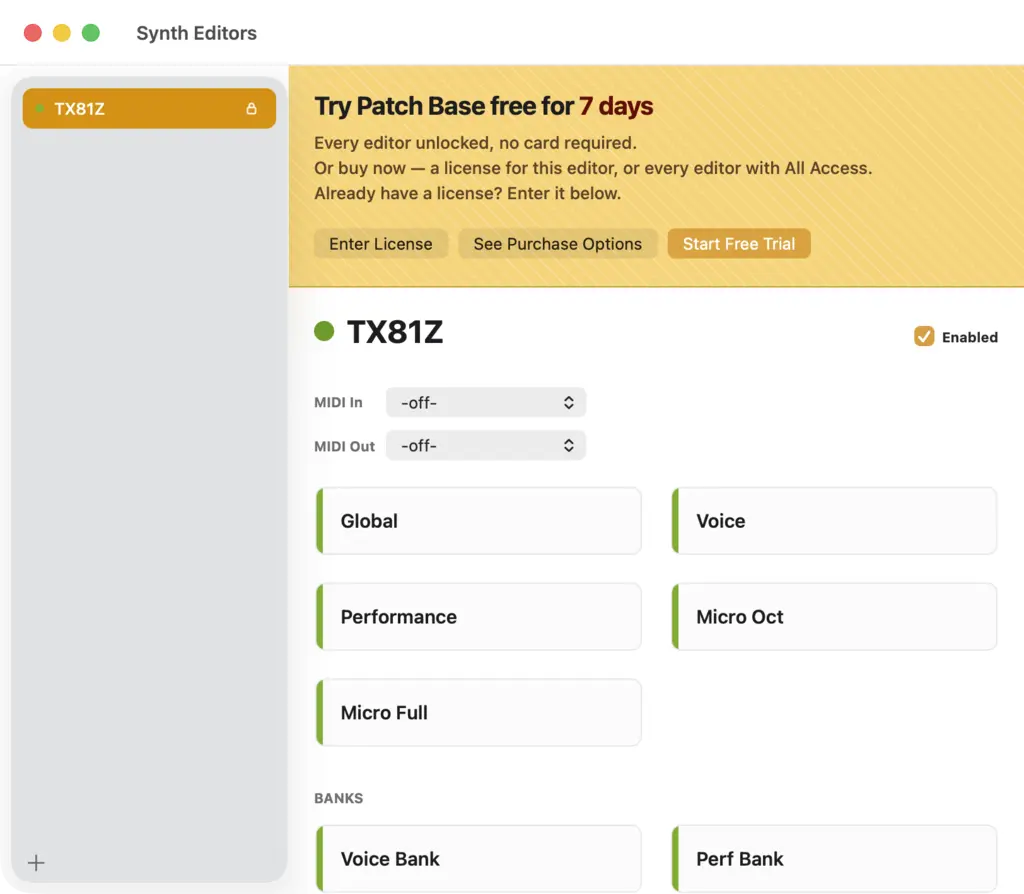
Editor Overview Screen
The Editor Overview shows several things at once.
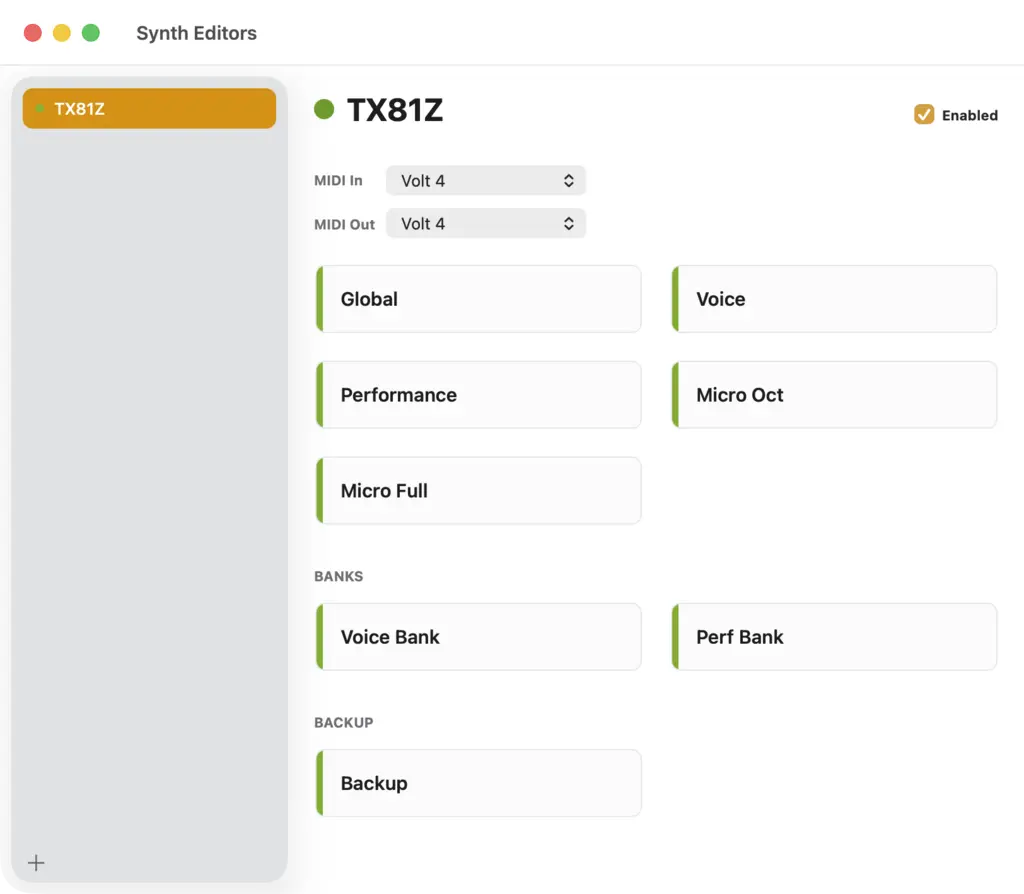
At the top is the name of the editor. By default, the name is the model of your synthesizer, but you can click it and rename it to whatever you'd like. Especially helpful if you have 2 of the same unit, and you want to differentiate them.
After that is the Enabled checkbox. An editor must be enabled to be used! This feature exists because, if you have a lot of editors, the start-up time of the app can get slower, as well as its memory usage. So if there are editors you're not using much, un-check the Enabled box to leave them turned off until you need them.
Next are the MIDI In and MIDI Out settings. Here you select the MIDI Interface(s) that should be used to communicate with your synth. These need to be set for the editor to work, and should be set to the interface that your synth is connected to.
The rest of the screen shows the different areas of the synth. Just double-click any area to open the window for that part! Most synths will have a “Global” or “System” area which is where you might need to configure the MIDI Channel or Device ID that your synth is set to, so that Patch Base sends messages on the right channel. The main patch editor is usually labeled “Voice”. The “Banks” section gives access to the Bank Editors, for fetching your banks from the synths memory, organizing them etc. And some editors have a “Backup” section that unites all of the banks and Global configuration in one section so you can save it all to a single file.