 Coffeeshopped
Patch Editors
The Patch Editor windows are where you'll do your sound design.
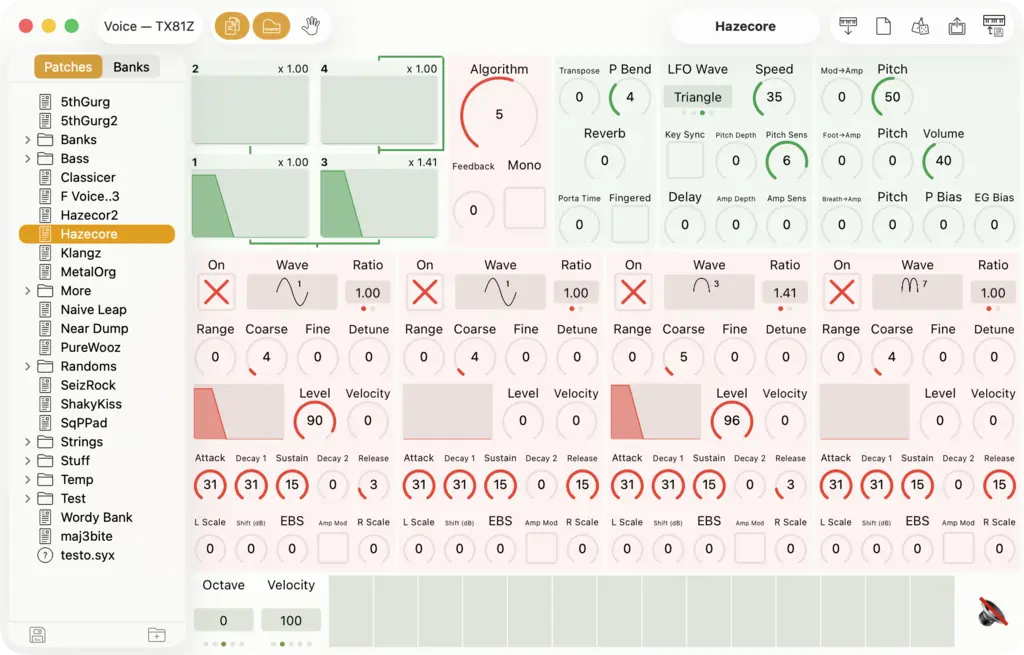
Above is the patch editor window for the Yamaha TX81Z. What you see in the main area of the window will be specific to your synth; everything else is universal, so let's go through the different parts.

In the top-left of the window, you'll see a label showing where you are. Here, we're in the “Voice” section of the TX81Z editor. You can click that label to get a dropdown menu that shows all of the sections of the editor, and you can choose any of them to open another window for that section. It's a quick way to jump between sections.
After that, there are three toggle buttons. The first toggles the File Browser, which you can see on the left-hand side of the window. That lists all of your saved patches for browsing and loading. The Patches tab of the browser shows all of the individual patches you've saved (it will be empty when you start out!). The Banks tab lists all of the saved bank files you have; you can expand any of them to load a patch from any saved bank you have.
The next toggle is the In-App Keyboard (the Piano icon). It toggles that keyboard area at the bottom of the screenshot. You can use that to play notes on your synth as you audition your sounds. You can also select Options > Computer MIDI Keyboard to toggle on the ability to use your computer keyboard to type notes (asdfghjkl;). The in-app keyboard is hard-wired to play a pentatonic scale.
The third toggle is to enable External MIDI Control to control Patch Base's on-screen parameters with your MIDI controllers. More on how that works on another page. But this toggle must be on for this area of this editor to respond to your MIDI controller. It's a quick way to turn that on or off.

In the top-right of the window there are several more tools. The first is a Name Field for the current patch. When you load or fetch a patch, the name of the patch will show here. You can just type a new name and hit Return to change the name of the patch you're working on. If the synth supports it, that name will automatically show up on the synth's screen. And if/when you save this patch, the name you enter here is what will be used for the file name.
Next, there are 5 buttons:
- Fetch: click this and Patch Base will attempt to fetch the currently loaded patch on your synth into memory. This will sync all of Patch Base's controls to match what is current on your synth, as well as the name.
- Init: this will load an “init” patch into the editor, and your synth. A sort of blank slate to start new sounds with.
- Randomize: this will create a randomized patch and send it to the synth. The randomizer is somewhat basic. It attempts to make an audible sound, but beyond that, it's a roll of the dice. A good place to find unexplored territory on your synth.
- Push: this will re-send the currently loaded patch from the editor to your synth. Useful for when you turn your synth on after Patch Base has already loaded a patch
- Save to Synth: this will open a dialog screen that lets you pick a place in your synth's on-board memory to save the current patch to (WARNING: this overwrite's whatever is saved on your synth! It is highly recommended to make sure you've fetched the current banks from your synth, and saved them to files, before using this feature).
Changing Parameters
Aside from all of the chrome I've just described, the “main” area of the editor shows all of the controls for patch editing on your synth. On many editors, this will be divided up into multiple pages that group parameters in different ways for easy viewing. When you change a control on the screen, Patch Base will instantly send that change to your synth, so you can design sounds in real time.
More About the File Browser
To help organize your patches, you can create folders. Just click the Folder icon in the bottom of the file browser to create a new folder. You can double-click that folder to rename it. Files can be dragged between folders for sorting.
The little floppy disk icon in the bottom left is a Quick Save button. It will immediately save the currently loaded patch, using the name typed in the Name Field. If that save would overwrite a file you already have, Patch Base will ask you to confirm first.
If a file shows up with a “?” icon to the left of it, that means Patch Base doesn't think that file is a valid patch for this synth. Feel free to contact me if you think it's incorrect in your case. There are many formats out there.
When you click over to the Banks tab, you'll see the Quick Save and Folder icons disappear. They're only currently available for the Patches tab.
You can view your patch file in a Finder window by right-clicking and choosing “Show in Finder”.
If you ever want a text version of the parameters in a patch, you can right-click a patch file and choose Copy Parameters to Clipboard. Then you can paste that text in whatever app you like. The parameters are shown in an internal format that Patch Base uses, but they are hopefully decipherable for you.